
Have you ever noticed that your internet feels slower while many people around you are already using 5G? If you own an Android smartphone, there’s a good chance your device already supports 5G, but the feature may not be enabled yet. Many users continue using 4G simply because they don’t know where to find the right network settings.
If your Android phone supports 5G, you have a 5G-enabled SIM card, and your area has 5G coverage, you can switch to the faster network by changing a few settings on your phone. In this guide, you’ll learn the complete process in simple language so you can enable 5G without any confusion.
Check Whether Your Android Phone Supports 5G
Before changing any settings, make sure your smartphone is actually compatible with 5G. Most recently launched Android devices support 5G, but older models may only work with 4G networks.
You can check your phone’s specifications by looking at the device box, opening the phone’s About section in Settings, or checking the official specifications for your phone model. Once you confirm that your device supports 5G, you can proceed with the next steps.
How to Turn On 5G on an Android Phone
Open the Settings app on your smartphone. Depending on your phone brand, you’ll see options such as Mobile Network, SIM Cards & Mobile Networks, Connections, or Network & Internet.
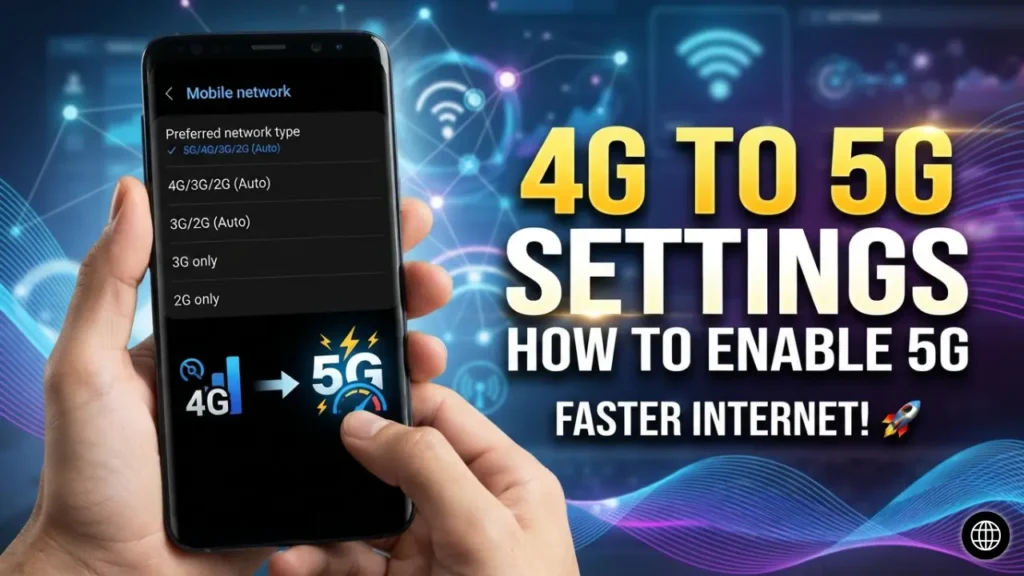
Select the SIM card that you use for mobile data. After that, look for an option called Preferred Network Type, Network Mode, or Preferred Network.
You may see options like:
- 2G
- 3G
- 4G
- 5G
- 5G/4G/3G/2G Auto
If 5G Auto, 5G Preferred, or a similar option is available, select it. Your phone will automatically connect to a 5G network whenever it is available.
What to Do If the 5G Option Is Missing
Sometimes a phone supports 5G, but the option does not appear in the network settings. In this situation, check whether a software update is available.
Open Settings, go to Software Update or System Update, and install the latest version if one is available. Smartphone manufacturers often enable or improve 5G functionality through software updates.
After the update is complete, restart your phone and check the network settings again. In many cases, the 5G option becomes available after updating the device.
Make Sure Your APN Settings Are Correct
If you’re facing internet connectivity issues, it’s also worth checking your APN settings.
Go to Settings > Mobile Network > Access Point Names (APN). If the APN has been modified, restore it to the default settings or select the default APN provided by your mobile network operator.
Correct APN settings help maintain a stable mobile internet connection.
Restart Your Phone After Changing Network Settings
Once you’ve selected the 5G network mode, restart your smartphone.
Restarting allows your device to reconnect to the mobile network and search for the best available signal. In many cases, the phone connects to a 5G network immediately after rebooting.
Use Airplane Mode to Refresh the Network
If 5G still doesn’t appear, turn Airplane Mode on for about 15 to 20 seconds and then turn it off.
This forces your phone to reconnect to the mobile network. Many users find that their phone detects the 5G network after this simple refresh.
Things to Remember When Using Dual SIM
If your phone has two SIM cards installed, make sure your mobile data is assigned to the SIM card that supports 5G.
Some Android devices provide 5G connectivity only on one SIM slot, so placing the correct SIM in the supported slot can make a difference.
Turn Off Battery Saver Mode
Power Saving or Battery Saver mode can sometimes limit network performance on certain Android phones.
If you want the best possible network experience, temporarily disable Battery Saver and check whether your phone switches to a 5G connection.
Stay in an Area With Good 5G Coverage
Even after enabling all the correct settings, your phone can only connect to a 5G network if the service is available in your location.
If you’re indoors or in an area with weak coverage, try moving to an open space or another nearby location where the 5G signal is stronger.
Network Settings on Different Android Brands
Although every smartphone brand has a slightly different interface, the process is nearly the same.
On Samsung devices, you can usually find the option under Settings > Connections > Mobile Networks.
On Xiaomi, Redmi, and POCO phones, it is generally available under SIM Cards & Mobile Networks.
On realme, OPPO, and OnePlus devices, you can find it under Mobile Network or Preferred Network Type.
Vivo and iQOO smartphones also include a similar option inside the Mobile Network settings where you can choose the preferred network mode.
The names may vary slightly, but the overall process remains almost identical.
Check Whether 5G Is Working
After enabling the correct settings, look at the status bar at the top of your screen. If you see a 5G or 5G+ icon, your phone has successfully connected to a 5G network.
You can also use a trusted internet speed testing app or website to check your connection speed.
If 5G Still Doesn’t Work
If your phone still isn’t connecting to a 5G network, review these important settings:
- Install the latest software update.
- Select 5G Auto or 5G Preferred as the network mode.
- Reset or restore the default APN settings.
- Restart your smartphone.
- Toggle Airplane Mode on and off.
- Make sure mobile data is enabled on the correct SIM.
- Move to an area with better 5G coverage.
Following these steps solves the problem for most Android users.
Final Thoughts
Enabling 5G on an Android phone is usually a quick and simple process. If your smartphone supports 5G, your SIM card is compatible, and your area has 5G coverage, selecting the correct network mode is often all you need to enjoy faster internet speeds. Many people continue using 4G simply because they never check their network settings. Take a few minutes to review your phone’s mobile network options, and you may be able to enjoy a smoother and faster mobile experience with 5G.
────────────────── ✦ ──────────────────