
In today’s digital world, almost every part of our life is stored on our smartphone. From banking details and personal chats to private photos and important work documents, everything is saved on our mobile devices. That’s why smartphone security has become more important than ever. For years, we have relied on PINs, Patterns, and Fingerprint Locks to protect our phones.
But have you ever thought that these traditional security methods are no longer as private as they once were? Whenever you enter your PIN or Pattern in a public place, someone standing nearby can easily observe it.
To solve this privacy issue, Touch Lock Screen Touch Photo introduces a completely different way of locking your phone. Instead of using numbers or patterns, it allows you to unlock your device by touching specific points on a photo. Let’s explore how this app works, its features, and how you can set it up on your Android phone.
What Is Touch Lock Screen Touch Photo Apps?
Touch Lock Screen Touch Photo is an advanced graphical security application designed for Android users. Unlike traditional PINs or Pattern Locks, this app uses Photo Positioning Technology as its unlocking method.
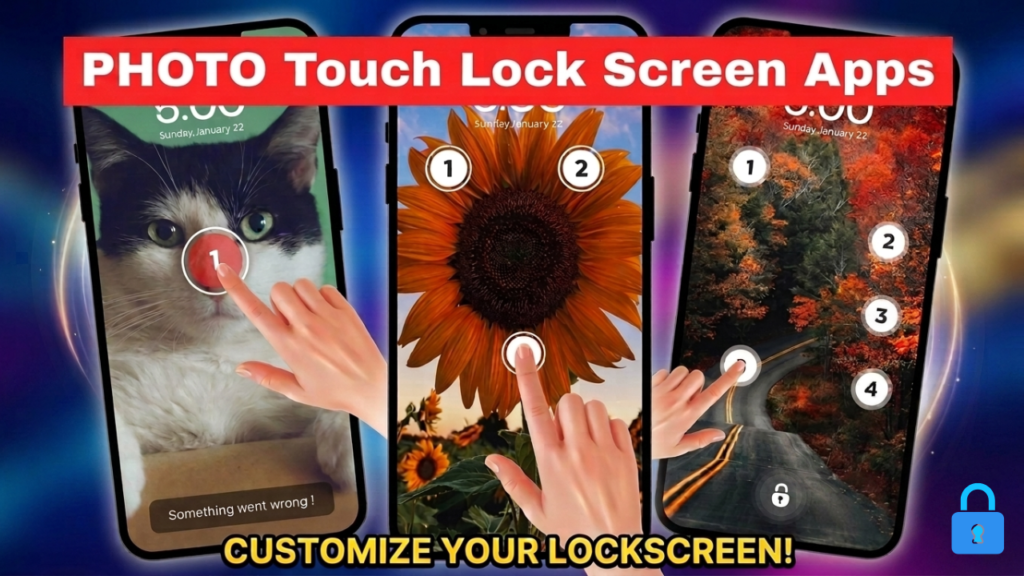
With this app, you can choose any image from your phone’s gallery, whether it’s your own picture, a car, your pet, or a favorite wallpaper, and set it as your unlock screen. To unlock your phone, you simply tap specific areas of that photo in a predefined sequence. For example, you might tap your eye in a selfie, the dial of a watch, or the wheel of a car. Since only you know the exact touch points, it becomes extremely difficult for someone else to guess your unlock method.
How Does It Work? (Graphic Authentication Technology)
The app uses Graphic Authentication Technology to create a unique unlocking experience. After selecting a photo, you choose between two and four touch points on that image.
For example, if you select a picture of your pet dog, you could create a password by tapping the dog’s right ear twice and then its nose twice in a specific order. Whenever the screen is locked, only the selected image appears. Entering the same touch sequence unlocks your phone instantly.
Key Features of Touch Lock Screen Touch Photo
Touch Lock Screen Touch Photo is more than just another lock screen app. It includes several features designed to improve both security and convenience.
Invisible Password Protection
When you tap your secret touch points, no dots, numbers, or pattern lines appear on the display. This makes it much harder for anyone standing nearby to understand how you unlocked your phone.
Recovery PIN
Sometimes users may forget their touch sequence. To avoid getting locked out, the app allows you to create a backup PIN. If you ever forget your photo touch password, you can unlock your phone using this recovery PIN.
Extensive Customization
The app offers several customization options for your lock screen. You can change the clock style, date format, font color, and even choose from various built-in wallpapers to personalize your device.
Intruder Alert
Some advanced versions of Touch Lock Screen apps include an Intruder Alert feature. If someone repeatedly enters the wrong touch points multiple times, the front camera may automatically capture their photo. This allows you to see who attempted to access your phone.
Lightweight Performance
The application is designed to consume minimal RAM and battery power, allowing it to run smoothly without noticeably affecting your phone’s overall performance.
Which Apps Can You Protect?
Depending on the version of the app and your device compatibility, you can lock selected applications individually, including:
- Gallery
- Photos
- Messages
- File Manager
Keep in mind that available features may vary depending on the app version and your Android device.
How to Set Up Touch Lock Screen Touch Photo
Setting up the app is simple and takes only a few minutes.
Step 1: Download the App
Open the Google Play Store on your Android phone, search for Touch Lock Screen Touch Photo, and install the official application.
Step 2: Create Your Photo Code
Launch the app and tap Create Photo Code. Select your favorite image from the gallery.
Step 3: Choose Your Touch Points
Now tap the specific areas of the image that you want to use as your unlock code. Select the points in the exact order you want them to be recognized.
Step 4: Select the Apps to Lock
The app will display a list of installed applications. Choose the apps, such as WhatsApp or Instagram, that you want to protect using the touch photo lock.
Step 5: Confirm Your Touch Password
To verify accuracy, the app will ask you to repeat the same touch sequence. Once confirmed, your photo password will be saved.
Step 6: Create a Backup PIN
Finally, create a strong four-digit Recovery PIN. This PIN can help you unlock your protected apps if you ever forget your touch sequence.
Is This App Really Secure?
Many people wonder whether tapping a photo can actually provide reliable security. The answer is yes, when used correctly.
Traditional PINs and Pattern Locks offer a limited number of possible combinations, making them more vulnerable to observation or guessing. In contrast, a digital image contains millions of pixels. Since only you know the exact touch locations and sequence, it becomes significantly more difficult for someone else to predict your unlock method.
This approach can also help reduce the risk of shoulder surfing, where someone secretly watches you unlock your device in public.
However, it’s important to remember that the overall security of your phone also depends on the app’s implementation and Android’s security model. Using apps only from trusted sources is always recommended.
Download the official app from Google Play Store